
Word add-in
The Zinc Word add-in is Windows only. It lets you cite from your library while you write in Microsoft Word. It adds a Zinc tab to the ribbon and a sidebar where you search your library, insert citations, and build and refresh a bibliography. Citations are stored in the document as Zotero-compatible fields, so a document written with Zotero’s own Word plug-in can be opened and refreshed with this one, and the other way round.
The add-in reads your library file directly, in read-only mode, so it works whether or not the Zinc app is open. The app is only started on demand when you click Open in Zinc on a cited item (see Open in Zinc).
Not supported: LibreOffice and Google Docs. Settings > Integrations lists “LibreOffice and Google Docs” as a cite-while-you-write integration that is not available yet. Only Microsoft Word on Windows is supported.
Installing
There are two ways to install the add-in. Both install it for your Windows user only, with no administrator rights, and neither changes any machine-wide setting.
With the Zinc installer. The installer has an optional component, Word add-in, which is ticked by default. Leave it ticked and the add-in is copied into the app folder (word\addin inside the install folder) and registered for your user. Untick it to skip. If Word is open while you install, the add-in is left as it is; close Word and install again.
From the app. Go to Settings > Integrations (see Settings reference), find Microsoft Word add-in under Word processors and click Install Microsoft Word add-in. The row then shows Installed with Reinstall and Uninstall buttons. Close Word before installing or removing; the row reminds you. When it finishes you are told to open Word and look for the Zinc tab.
Uninstalling the app removes the add-in too. Your library and documents are never touched.
The ribbon tab
The Zinc tab has a Citations group with four buttons:
| Button | What it does |
|---|---|
| Sidebar | Shows or hides the Zinc sidebar (docked on the right, 400 pixels wide) |
| Add/Edit Citation | Opens the sidebar with the search box focused, ready to insert a citation at the cursor |
| Bibliography | Inserts or updates the bibliography |
| Refresh | Re-formats every citation and the bibliography |
The sidebar
The top of the sidebar shows the current document and its citation style (for a new document it says “new document” and the default style). The gear button opens settings.
Insert a citation
- Put the cursor where the citation should go.
- Type in the search box: title, author, year or DOI. With nothing typed it lists recently added items.
- Click a result to cite it at the cursor straight away.
To cite several items together in one citation, tick the checkbox beside each result (or press Shift+Enter on the highlighted result). They collect in a tray under the list. Each tray entry has a Page, prefix, suffix… section where you can set:
- Locator and its Type (page, chapter, section, paragraph, figure, table, volume, line, note, verse);
- Prefix and Suffix text;
- Omit author.
Then click Insert citation (it counts the items, for example “Insert citation (3 items)”), or press Ctrl+Enter in the search box. Clear empties the tray. Use the arrow keys to move through results, Enter to cite, and Esc to clear the search.
After each insertion the add-in re-formats the document so numbering and disambiguation stay correct, and reports a summary such as “N citation(s), M updated”.
Edit a citation you have already inserted
Put the cursor inside a citation. A Cited here card appears in the sidebar showing each cited item, whether it is in the library, in the trash or not in the library (an embedded copy is used), its locator and prefix or suffix, and its abstract. The card offers:
- Edit citation: loads the citation’s items into the tray; change them and click Update citation (or Cancel edit);
- Split: turns a multi-item citation into one citation per item (Refresh joins touching citations again);
- Delete: removes the citation. There is no prompt; Ctrl+Z in Word undoes it;
- per item, Open in Zinc (see below), DOI (opens doi.org) and Fetch abstract when none is on record.
Open in Zinc
Open in Zinc brings Zinc’s window to the front and shows the cited item:
- If the item has a PDF, Zinc opens it in its reader. If there is no PDF, it opens the EPUB, and if there is no EPUB, the web snapshot.
- If the item has no file, Zinc shows the item in the Library tab: selected and scrolled into view. When the item is not in the view you had open, Zinc switches to My Library first and clears the search box, the tag filter and full-text mode.
- If Zinc is not running, the add-in starts it and waits up to about 40 seconds for it to be ready.
If you typed into a citation by hand, editing it warns you first, because editing replaces your changes.
The citation popup
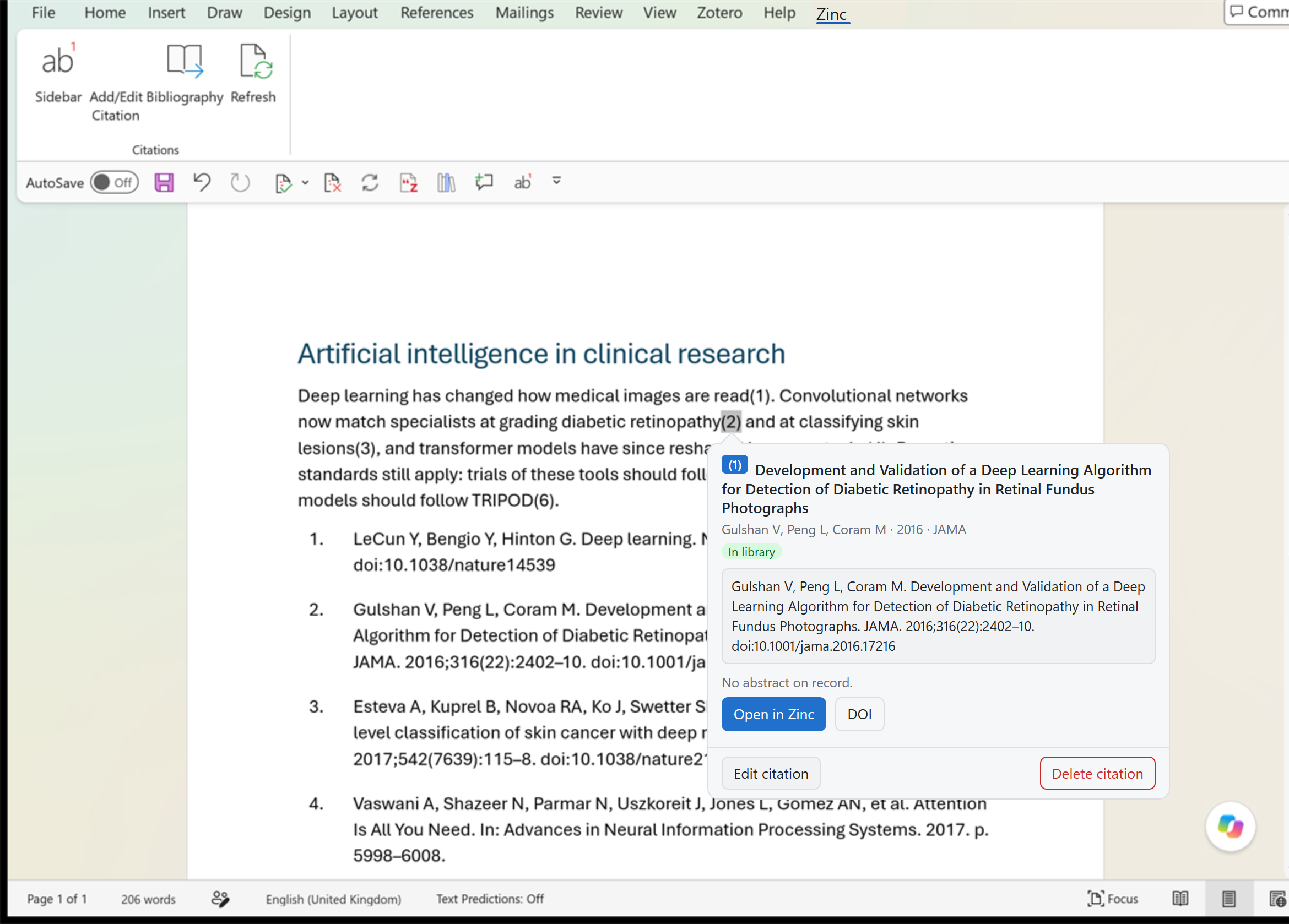
When the cursor rests inside a citation and Word is the active window, a small popup appears beside it showing the full reference, with Open in Zinc (for an item in your library), DOI (when the item has one), Edit citation (opens the sidebar on that citation) and Delete citation. Esc closes it, and it stays closed until the cursor leaves that citation. To switch the popup off, set citationPopup to false in the add-in’s settings.json (see below).
Bibliography
- Insert bibliography inserts a bibliography at the cursor if the document has none; if there is one, it updates it.
- Edit bibliography lets you exclude an entry, change its text (use
<i>...</i>for italics and<b>...</b>for bold), or add an item the text does not cite (search for it in the box). Choose Save, or Revert all to undo the changes. This is stored in the bibliography field, as Zotero does. It needs a bibliography to exist first.
Refresh
Refresh all re-reads every field, picks up edits you have made to the items in your library, joins adjacent citations, and rewrites what changed. If some citations were edited by hand, it asks once whether to keep your edits (they are then left alone by later refreshes) or replace them with the formatted citation. A summary reports citations updated, items not found, citations merged and hand-edited citations left alone.
Document preferences
Click the gear button. The settings panel has three parts.
Citation style
- Search styles: type to find a style (for example vancouver, nature, apa) and click one to apply it to this document. Styles not yet installed download on first use. The chosen style also becomes the default for new documents.
- Language: the locale, or “Style default”.
- Note styles use: Footnotes or Endnotes. This only matters for note styles; existing citations move to match.
- Automatically update citations: with this off, a new or edited citation is formatted on its own, and you use Refresh all to update the rest.
Switching between an in-text style and a note style moves citations between the text and footnotes.
Library
- Shows the library file being read, the item count, and that it is read-only.
- Database path (optional override): point the add-in at a different library file. By default it uses the same library as the app.
- zotero.org user id (for citation links): used for the links stored in citations. Leave it empty for a local library.
- Save applies both fields.
Document
- Unlink citations… turns every citation and the bibliography into plain text. The text stays, but it can no longer be refreshed or edited. A confirmation appears first; Ctrl+Z in Word undoes it. Do this on a copy when you are ready to send a final manuscript to someone who should not see the fields.
Add-in settings file
The add-in keeps its own settings in %APPDATA%\ZoteroNextWord\settings.json. Besides the library path, user id and default style that the panel writes, you can set citationPopup (false turns the popup off), and the MCP keys described in MCP for AI agents. A small log for diagnosing load problems is at %LOCALAPPDATA%\ZoteroNextWord\addin.log.
Using an AI agent with Word
The add-in includes an MCP server so an agent can list, insert and edit citations in the open document. It is on by default and protected by a token. See MCP for AI agents.
Things to know
- Compatibility. Fields are Zotero’s (
ZOTERO_ITEMand bibliography fields). Not implemented: storing citations as bookmarks (an existing preference is preserved as it is) and journal abbreviations. - Same item, different library. A citation can carry an embedded copy of an item. If the item is no longer in your library, the card says “Not in library” and the citation still formats from the embedded copy.
- Problems. See Troubleshooting and Logs and reports. If the tab does not appear after installing, close all Word windows completely and start Word again, because Word reads add-in registrations only at startup.