Library

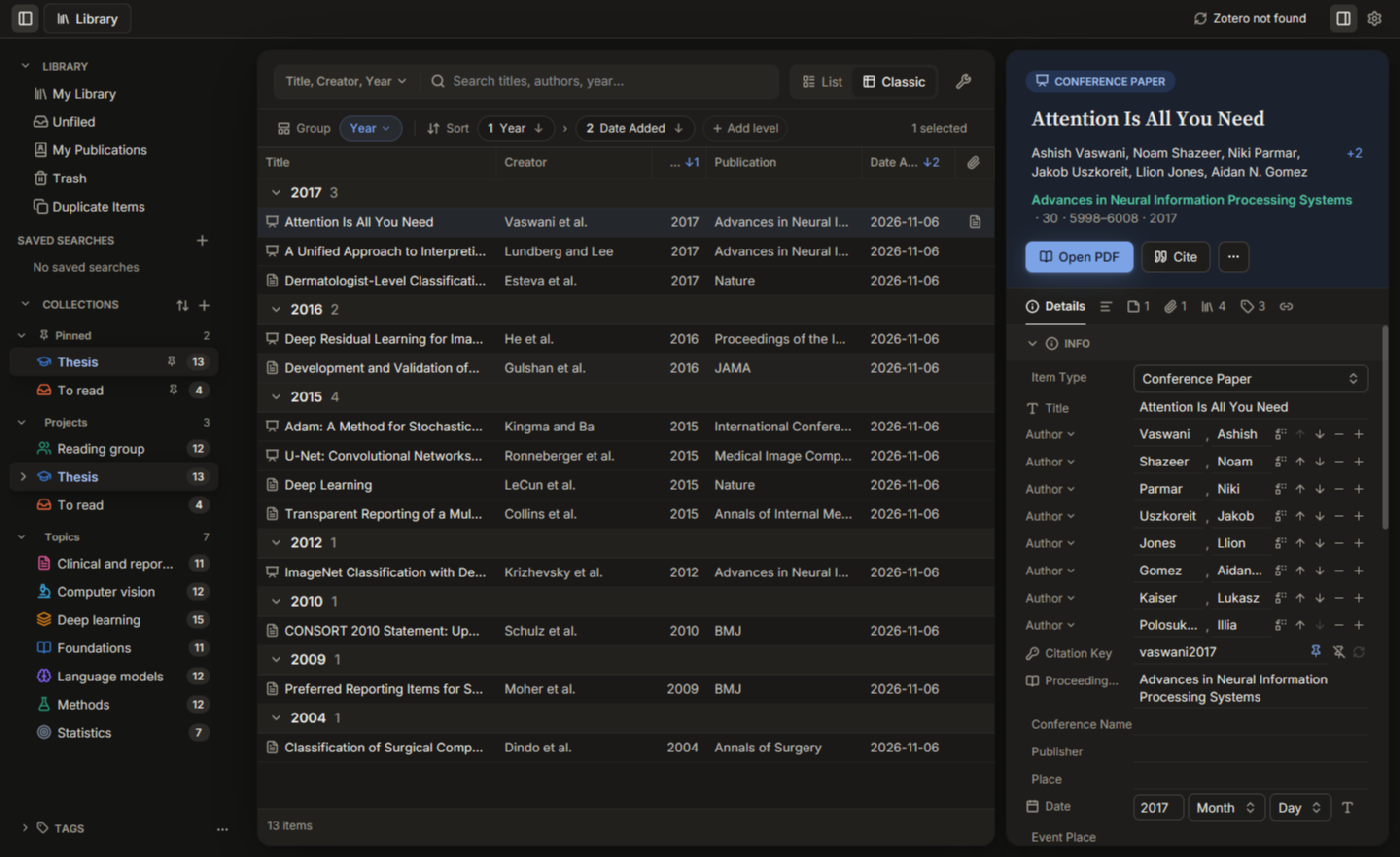
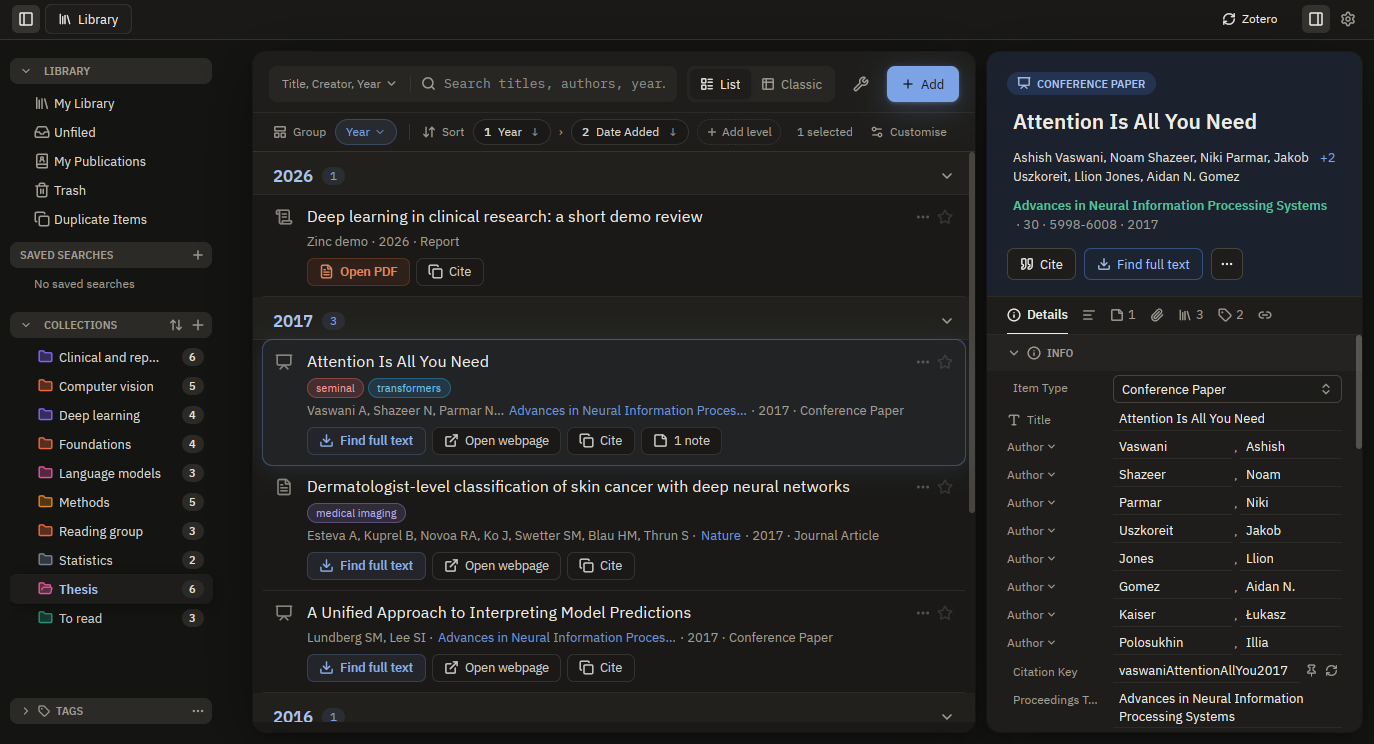
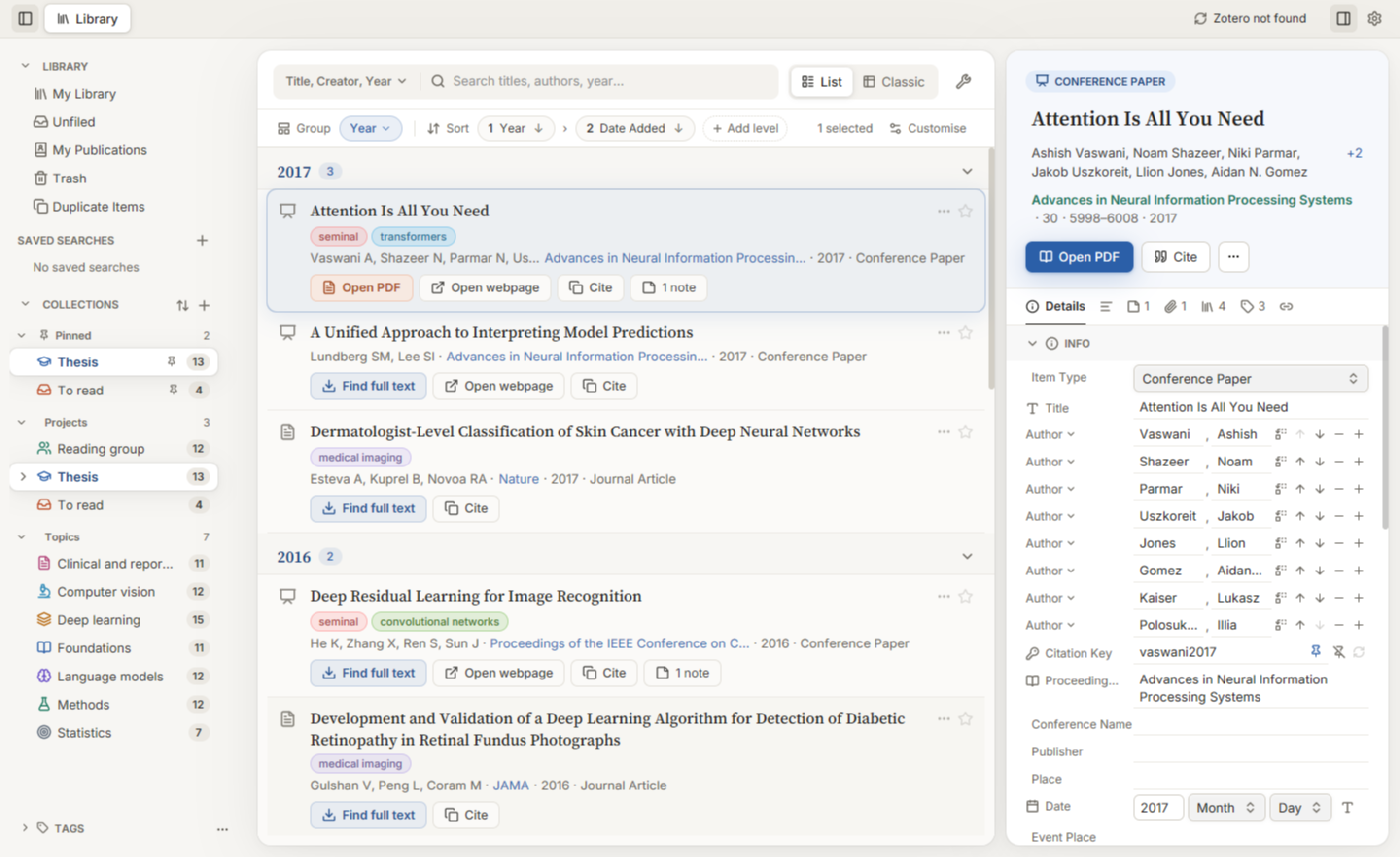
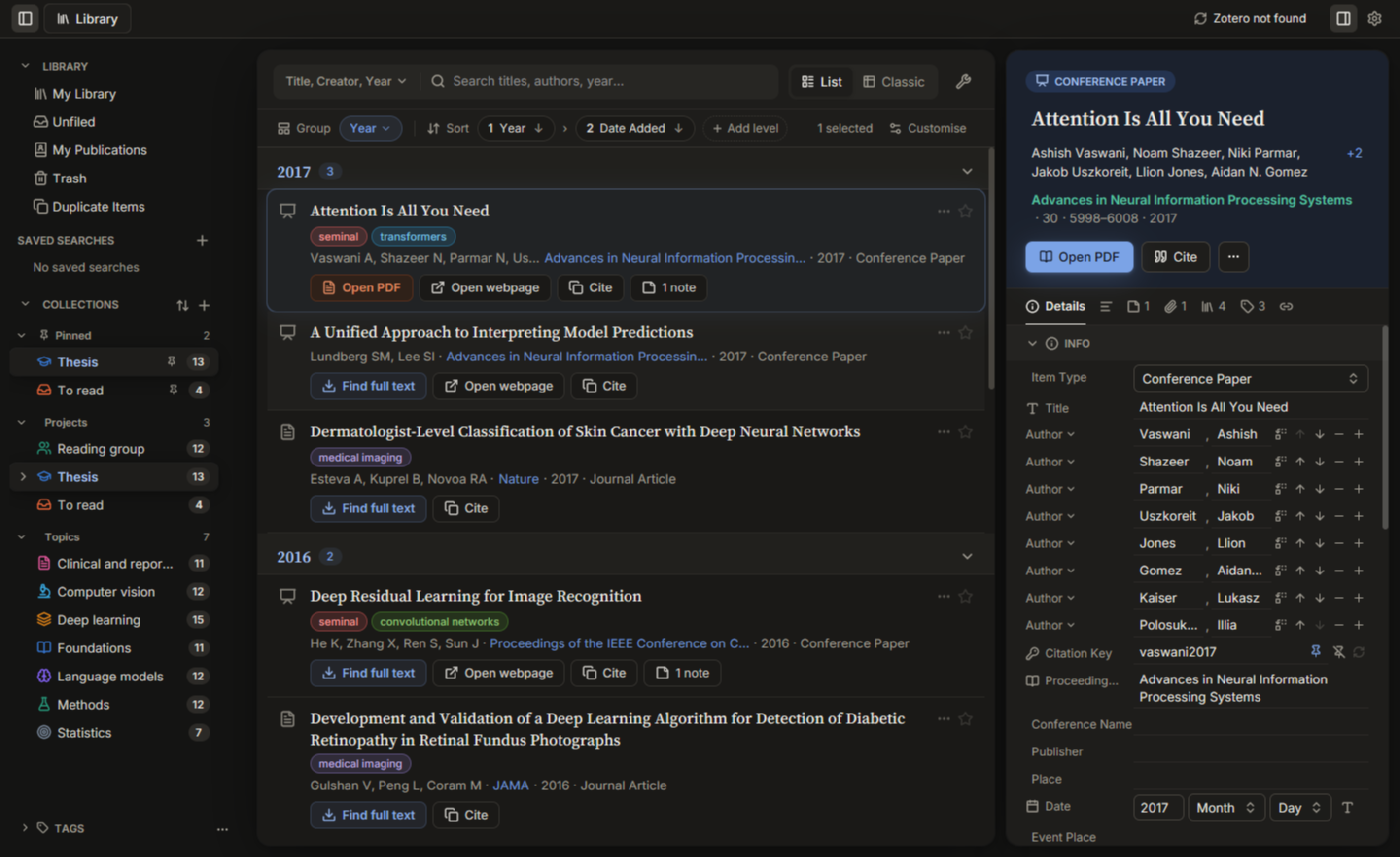
  • Two views: Cards (title, authors, venue, tags and one-click actions) and a Classic sortable table. In both, an item with attachments or notes has a twisty that opens them as child rows under it, as in Zotero.
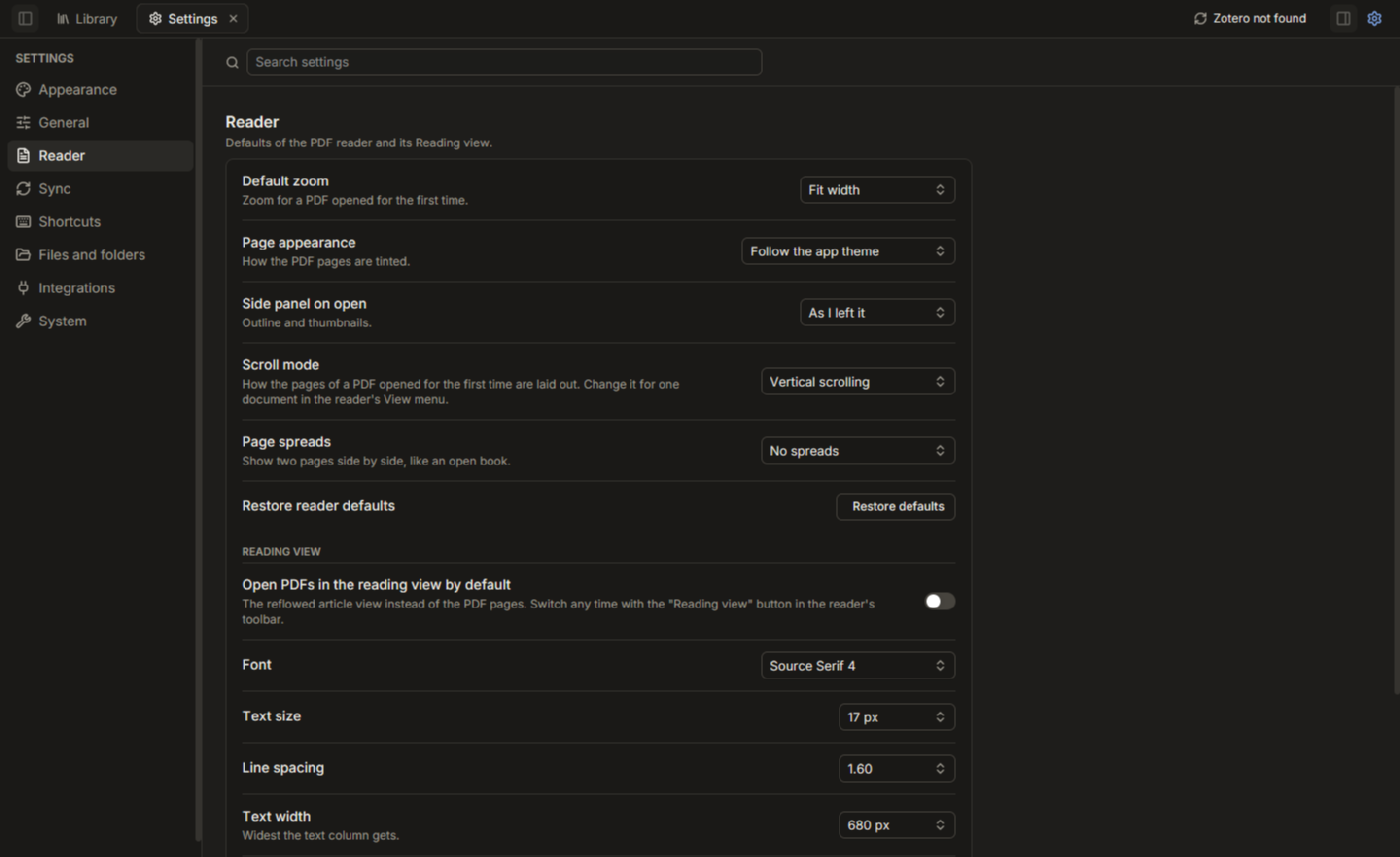
  • Make the list yours: choose what each card shows and Comfortable or Compact density, pick the table's columns from Zotero's full list, group the list by year, item type or publication, sort on up to four levels, and hide or show the side panes. Under Settings, Appearance, Sidebars, show, hide and reorder the sidebar groups and the item pane's sections. Unread items get a dot.
  • Organise collections your way: give each collection a colour and an icon (book, star, flask, microscope and more), pin favourites to the top, and group collections into your own named sections, or group them by colour.
  • Quick search (title/creator/year, all fields, or full text), Advanced Search and saved searches, coloured tags, duplicate detection and merging, trash, and My Publications.
Read the guide · Try the library live

The library in Cards view: coloured collections, papers grouped by year, and the item paneThe library in Cards view: coloured collections, papers grouped by year, and the item paneAfter clicking Cards or Classic
Plate I. The library in Cards view. Click a number to zoom in.

PDF reader

  • A native reader on PDFium: fit-width, fit-page, spreads, rotate, search, thumbnails and outline, dark and sepia page tints, and printing.
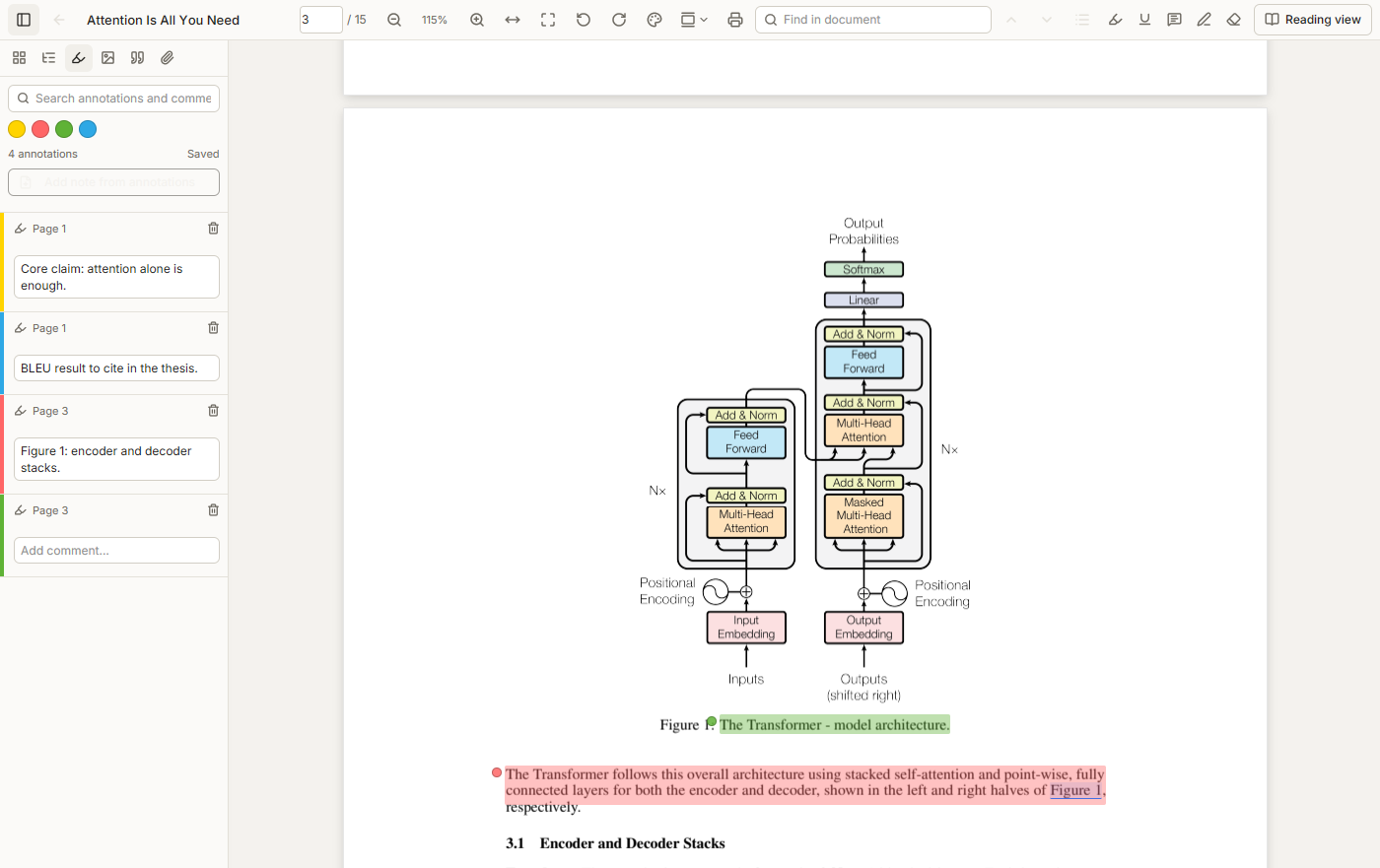
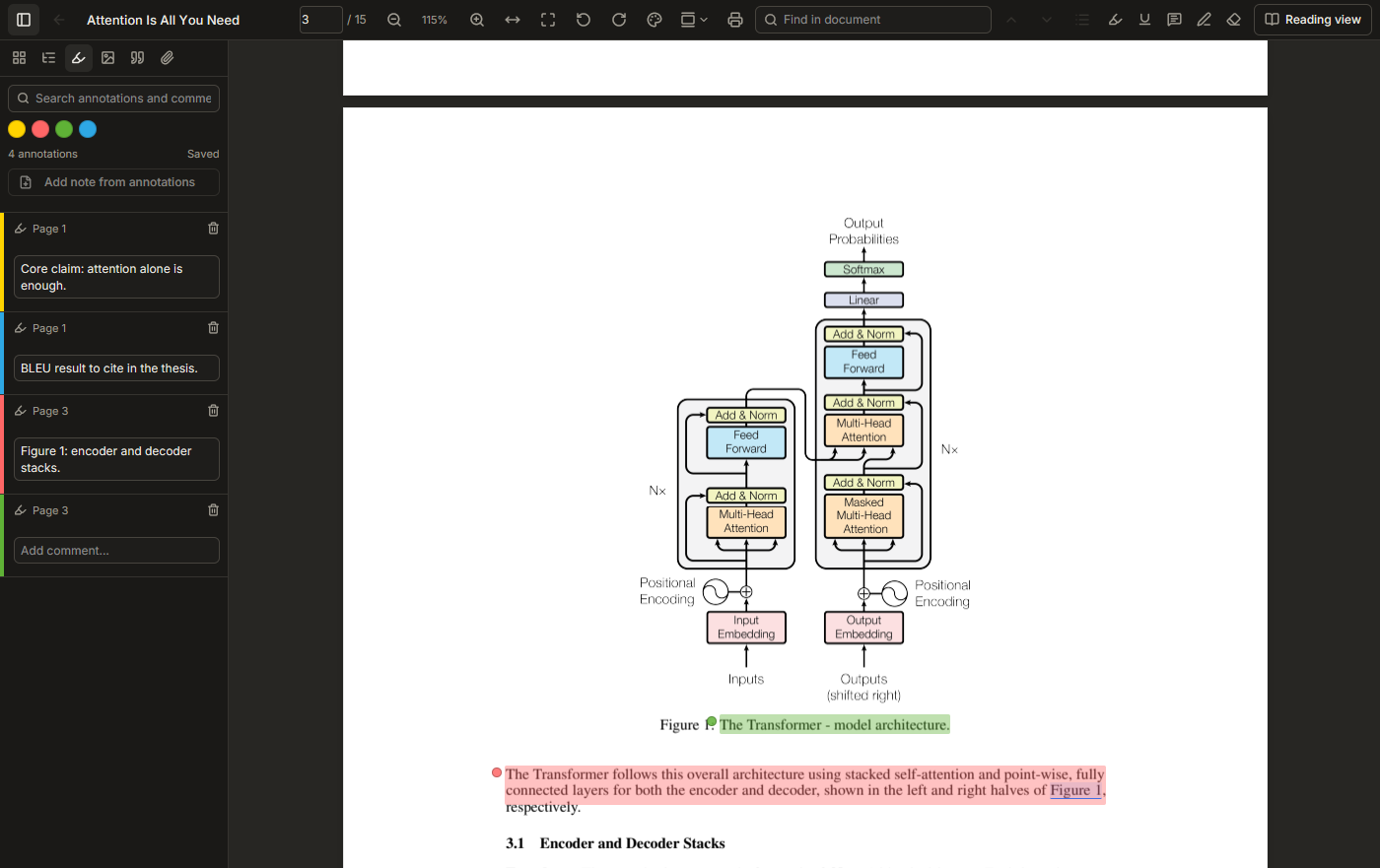
  • Annotations: highlight, underline, note, ink, image and eraser, with colours, tags and comments. They are stored in the library, so they sync.
  • Hover a citation such as [3] or "Vaswani et al., 2017" to see the reference: title, details and abstract, with Add to library (or Open in library) and a full-text lookup. Click to pin the card.
  • Hover "Figure 2" or "Table 3" to see the figure itself, its caption and its page, with Go to figure.
  • Hover an entry in the bibliography to see where the paper cites it, with the surrounding sentences.
  • Side panels for the paper's References (the resolved bibliography, with a filter), Figures & Tables (thumbnails; click to jump) and Supplementary files, next to Outline, Thumbnails and Annotations.
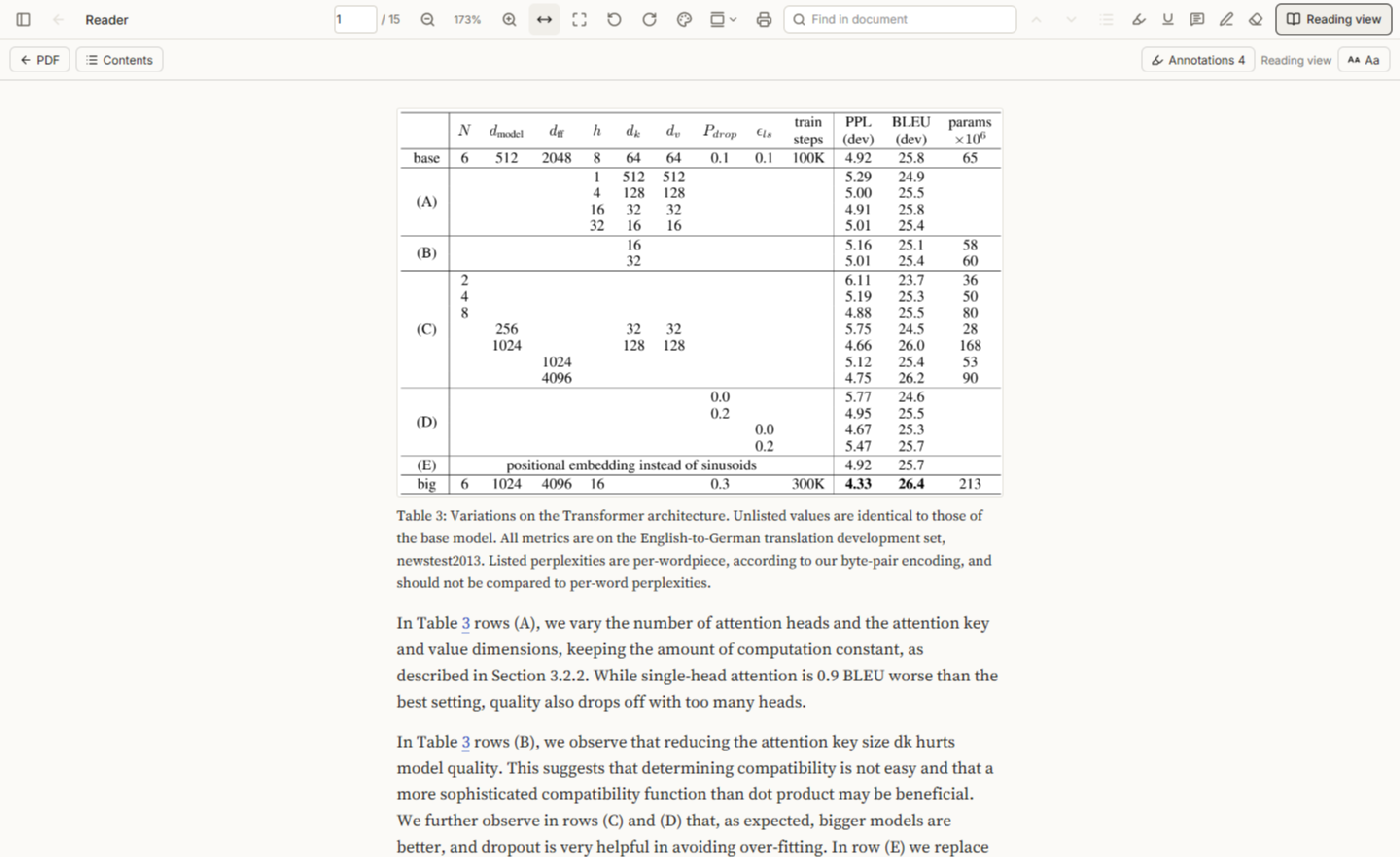
  • Reading view: a reflowed article layout built from the PDF, with your own font (Source Serif 4, Literata, the system font, or any font installed on the computer), size, spacing, width and theme. Each font and theme button previews itself. Figures and tables stay in place as cards, and citations and figure mentions are links, with Back to return.
  • Page tools: delete and rotate pages.

Read the guide

The PDF reader with highlights and the annotations panelThe PDF reader with highlights and the annotations panelAfter clicking Reading view
Plate III. The PDF reader with the annotations panel. Click a number to zoom in.

Notes and web

  • A rich note editor (child notes and standalone notes), and "add note from annotations".
  • Web tabs for saved snapshots and EPUB books.
The reading view, showing an article's table as a cardAfter clicking Back to the PDF
Plate IV. The reading view, with a table set as a card. Click a number to zoom in.

Sync and storage

  • Two sync routes, one active at a time: your local Zotero data folder, or zotero.org through the Web API (API key kept in the system's credential store: Windows Credential Manager, the macOS Keychain or the Secret Service on Linux; never in the database). zotero.org sync includes group libraries: groups appear under Group Libraries in the sidebar, with their collections, and read-only groups are never edited or uploaded to.
  • Linked and stored files, with your own attachment folder (see ZotMoov file storage).
  • Find Full Text and Locate engines, and "Cite" from any row.

Read the guide

Getting references in and out

  • Zotero's translators, built in: add from a URL, import and export in any format a Zotero translator handles. RIS, BibTeX, CSL JSON, EndNote XML, PubMed, Zotero RDF and MODS also have fast native importers.
  • Citation styles through citeproc-js.

Better BibTeX

Built in, no plugin to install:

  • Citation keys on every item, made from a key formula in BBT's own language (functions such as auth, year, shorttitle, filters such as .lower, alternatives with |). Pin a key to keep it; duplicates get a postfix.
  • Better BibTeX, Better BibLaTeX, Better CSL JSON and Better CSL YAML exports for an item, a collection or the whole library.
  • Automatic exports: a .bib or CSL file kept in step with a collection or the library, on change or when idle, written atomically.
  • BBT's HTTP endpoints on port 23119 (cite-as-you-write, JSON-RPC, export URLs), so Pandoc filters and citation pickers in Obsidian, VS Code, Emacs and vim keep working.

Read the guide

ZotMoov file storage

Built in, no plugin to install:

  • Keep attachments in your own folder (for example in OneDrive), as linked files, with a subfolder pattern in ZotMoov's wildcards such as {%a}/{%y}. One click applies ZotMoov's defaults.
  • New files from the browser, imports and Find Full Text go there automatically, named Author - Year - Title from their item and tagged zotmoov.
  • Move or copy existing attachments there with a preview first, convert linked files back to stored files, and delete files with their items.
  • Attach Newest File from a folder such as Downloads.
  • Moves are safe: each file is copied, checked, recorded, and only then removed; online-only OneDrive files and files in use are skipped.

Read the guide

Around the app

  • Word add-in with a sidebar and its own MCP server.
  • Browser connector: the Zotero connector port (23119), or a native-messaging fork of the connector that works even when the app is closed, with a save popup and your library in a browser tab.
  • MCP server in the core, so AI agents can search and manage the library.
  • A per-user Windows installer with signed auto-update, an AppImage for Linux and a disk image for Apple Silicon Macs, crash logging and versioned database migrations.
Settings, on the reader page, in the dark theme
Plate V. Settings, reader page, dark theme. Click a number to zoom in.

Word add-in

Zinc does not need to be open. The add-in reads your library file itself, so you can search, cite and build a bibliography with the app closed.

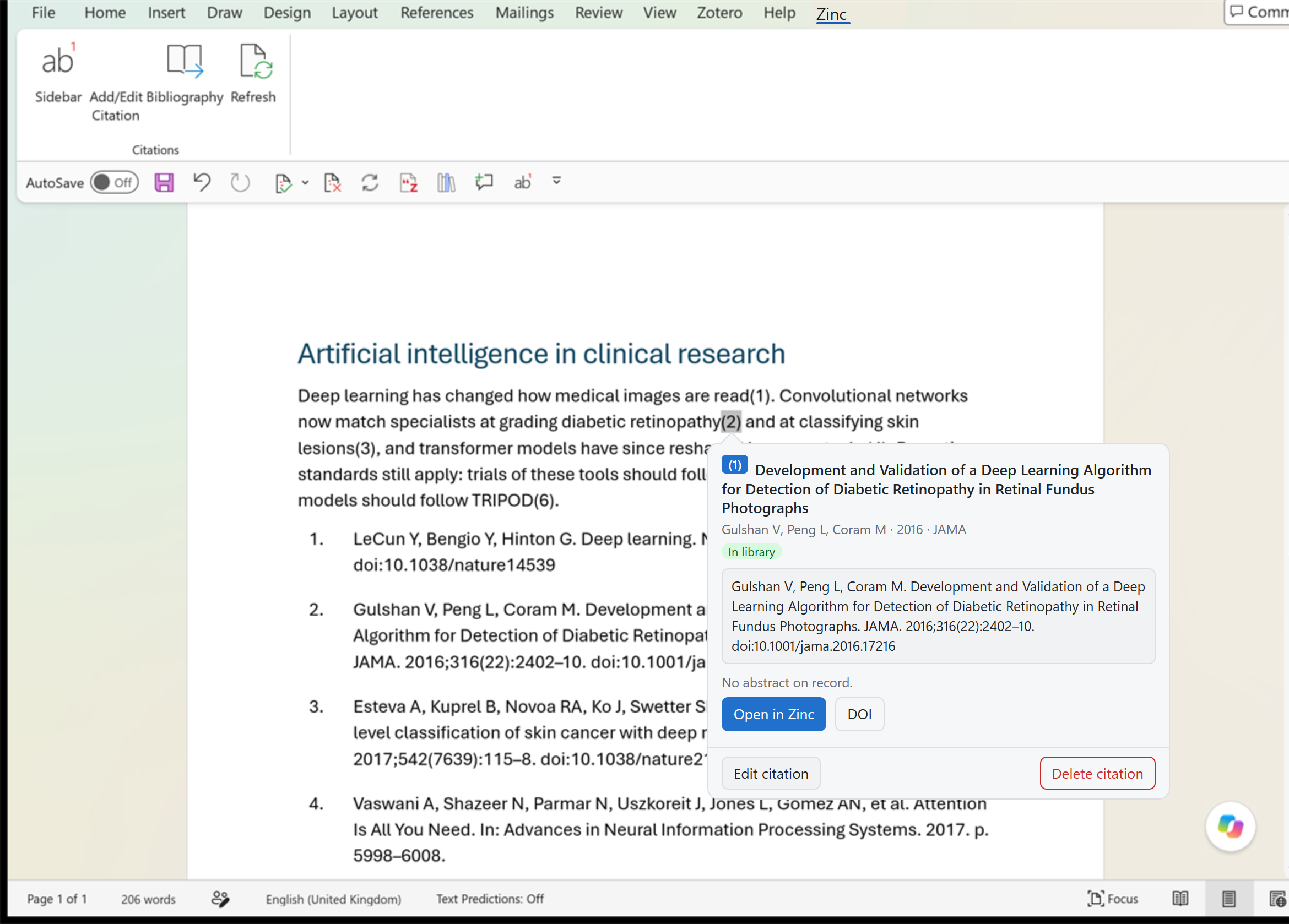
  • An add-in for desktop Word (.NET Framework 4.8) with a ribbon tab and a side panel for your library. It inserts live, Zotero-compatible citation fields and a bibliography using the same citation styles as the app, and it can refresh them. It can edit a citation (locator, prefix, suffix, several items), split or merge citations, edit the bibliography, and shows the full reference in a popup beside the cursor.

Read the guide · Try the sidebar live

Word with the cursor in citation (2): the Zinc popup under it shows the cited article, its formatted reference, and Open in Zinc, DOI, Edit citation and Delete citation
Plate VII. The citation popup: rest the cursor on a citation.

Browser connector

Save from Chrome and Edge, and browse your library in a tab, with Zinc closed. The Zinc Connector saves through a small helper program that opens your library file itself; saves sync the next time the app runs.

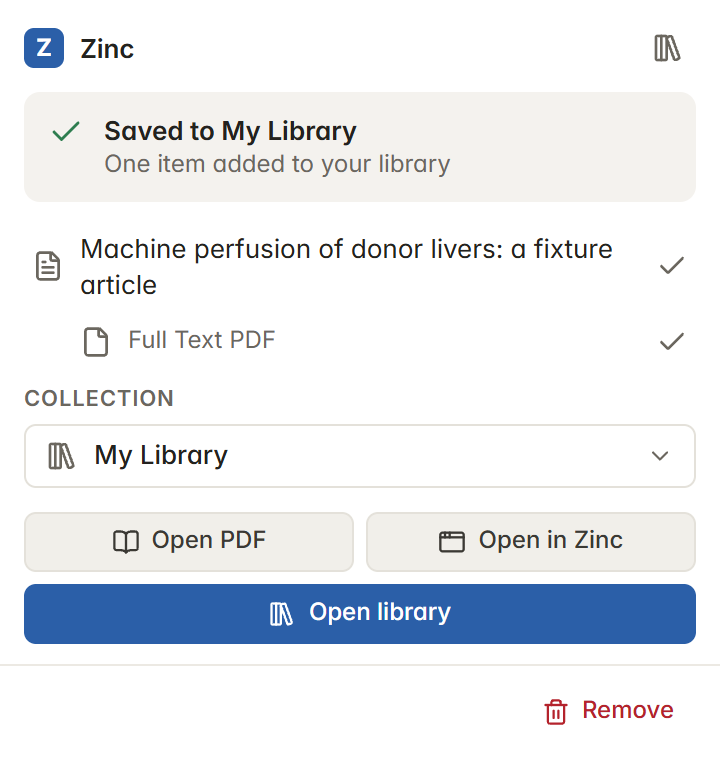
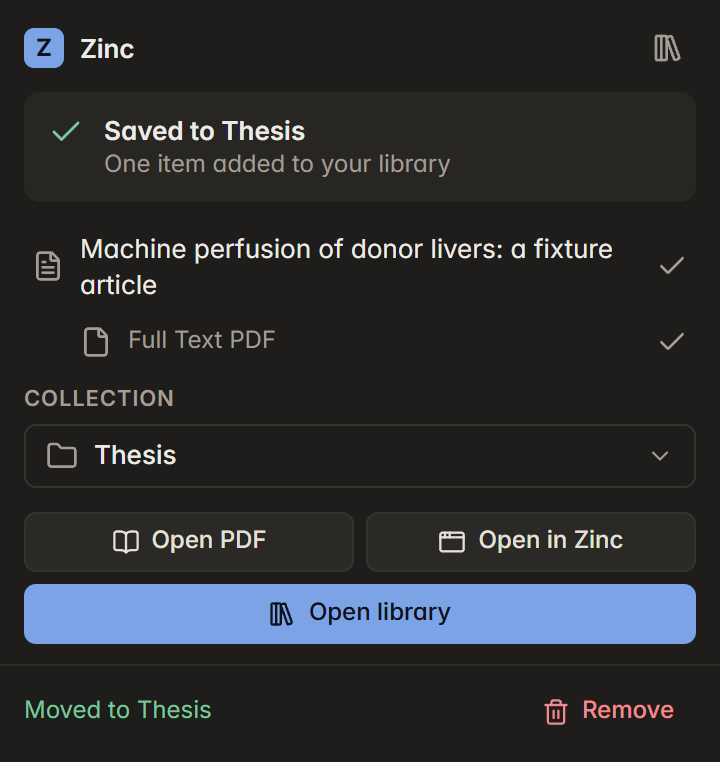
  • One click saves. Click the toolbar button and the page, its PDF or snapshot and its metadata are saved at once. A popup opens directly under the button, in Zinc's own look, light or dark.
  • Choose the collection in the popup. Search your collections by name, pick a recent one, or browse the tree. Choosing one moves the item you just saved.
  • Cancel or remove. Cancel stops a save in progress; Remove sends what you just saved to the Trash, where you can still restore it.
  • Open it where you want. Open PDF shows the saved file in the app's reader, Open in Zinc selects the item in the app (starting it if needed), and Open library opens your library in the browser.
  • Your library in a browser tab. Right-click the button and choose Open Zinc library: the same interface, built for the browser, on your library file. Read-only for now; PDFs in the tab come next.
  • Runs Zotero's translators, and works with Chrome and Edge (Manifest V3). The official Zotero Connector also works while the app is open.
The save popup: the saved article and its PDF, the collection, and Open PDF, Open in Zinc and Open libraryThe save popup: the saved article and its PDF, the collection, and Open PDF, Open in Zinc and Open library
The save popup, under the toolbar button.

Read the guide · Install it

Your library in a browser tab, opened from the Zinc Connector: collections, the item list and an item's details
Plate VIII. Your library in a browser tab, opened from the connector.

MCP for agents

  • The library has an MCP server in the core, with no plug-in to install. An agent such as Claude Code can search metadata, notes and PDF full text, read items and annotations, organise collections and tags, and format bibliographies in any CSL style. The Word add-in has its own MCP server, so an agent can also read and edit the citations in an open document. Neither server is reachable from other computers. See MCP for AI agents. No MCP server was found in the Zotero 10 install.

Read the guide