
Take it home
On Windows, one installer for the app, the Word add-in and the browser connector. On Linux an AppImage, on a Mac a disk image. None of them needs administrator rights, and none changes your Zotero library.
The installers are not code-signed yet. Windows may show an "unknown publisher" warning: click More info, then Run anyway. A Mac asks you to open the app once by hand (steps).
At a glance
| Windows | 10 or 11, 64-bit |
| Linux | AppImage, x86-64 |
| macOS | 13 or later, Apple Silicon |
| Installs to | your user, no admin |
| Size | about 100 to 145 MB |
| Updates | signed auto-update |
| Released | 17 Nov 2026 |
Install
The installer is not code-signed yet, so Windows SmartScreen says the publisher is unknown. Click More info, then Run anyway.
Your installed copy lives in %LOCALAPPDATA%\Programs\Zinc. Uninstalling removes the program, never a library.
- Run the installer.
Windows may say the publisher is unknown: click More info, then Run anyway. Pick the parts you want. Close Word first if you install the add-in.
- Choose a library.
Import from Zotero (only read), open a Zinc library, or start empty. First run.
- Pick a sync route.
A local Zotero, or zotero.org with or without attachments. Sync.
Silent install, for scripts:
Zinc-Setup-0.1.18-<build>.exe /VERYSILENT /SUPPRESSMSGBOXES /NORESTART /COMPONENTS="app,word,connector"
The browser connector
On Windows, the installer registers the helper program. Browsers do not let an installer add an extension, so load it once yourself. It takes about thirty seconds, and afterwards pages save even when Zinc is closed.
Click the button to save. A popup opens under it, where you choose the collection, cancel or remove the save, or open the item in Zinc. Right-click the button and choose Open Zinc library to browse and edit your library in a browser tab: items, collections, tags and notes. Sync, and anything that opens files on this computer, stay in the app.
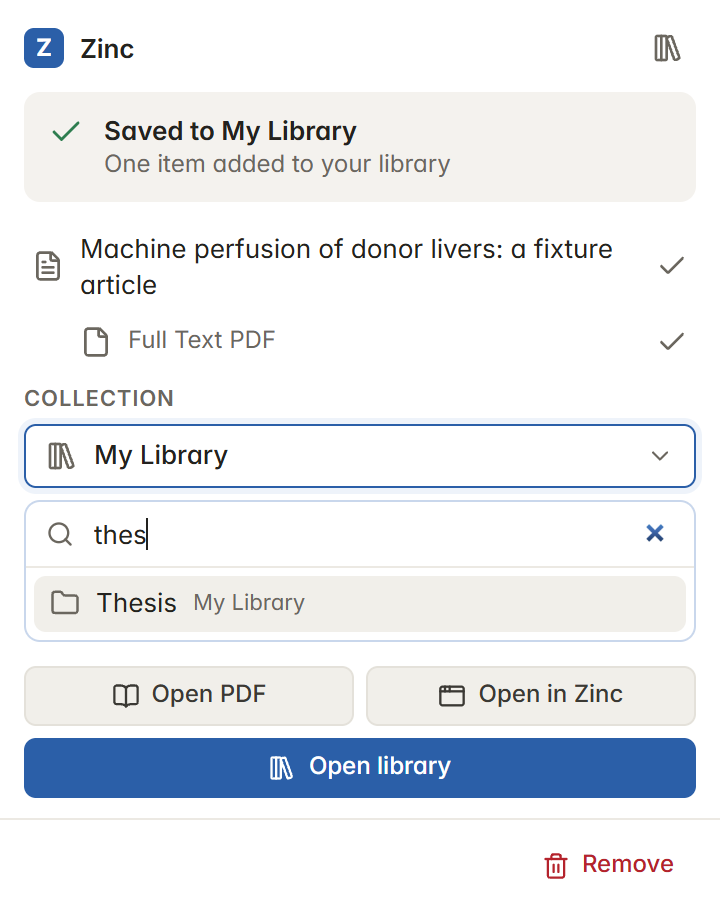
The official Zotero Connector also works, but only while the app is open. Keep one connector per browser, or every page shows two Save buttons.
- Open the extensions page.
chrome://extensionsoredge://extensions. - Turn on Developer mode.
- Load unpacked.
Pick
%LOCALAPPDATA%\Programs\Zinc\connector\extension. - Check the ID.
pakgagonakcalfbmckaolkpidcojacaf, then pin the button.
Linux and macOS
The same native app, drawn on the GPU, with the same library, PDF reader, reading view and sync. Each release has an AppImage for 64-bit Linux and a disk image for Apple Silicon Macs.
Like the Windows installer, neither is signed yet. macOS says it cannot check the app: right-click Zinc, choose Open, then Open again (steps on the right). Linux shows no warning.
The Word add-in, the closed-app browser connector and the Find Full Text sign-in window are Windows only for now. Save from the browser with the official Zotero Connector while Zinc is open. Zinc updates itself: the AppImage replaces its own file, and Zinc.app replaces itself once it is in Applications.
- Linux: make it executable.
chmod +x Zinc-<version>-x86_64.AppImage, then run it. Or, in your file manager, open the file's properties and allow it to run as a program. Snapshots, EPUBs and the note editor need WebKitGTK 6 (libwebkitgtk-6.0-4). - macOS: drag it to Applications.
Open
Zinc-<version>-arm64.dmgand drag Zinc into Applications. - macOS: open it once by hand.
It is not notarised yet, so macOS says it cannot check the app. Right-click Zinc, choose Open, then Open again. On macOS 15 and later, if there is no Open button: try to open it once, then go to System Settings, Privacy & Security, and click Open Anyway.
Install with an agent
An AI agent with a shell, such as Claude Code, can install Zinc for you on Windows, Linux or macOS. It downloads the right release with the GitHub CLI, installs it, checks it, and hands back the steps that need you: choosing a library, and on Windows loading the browser extension.
Copy the prompt and paste it into the agent. The steps it follows are written out at the end of the install guide, so you can read exactly what it will do first.
Install Zinc on this computer for me. Follow the steps under "Install with an AI agent" in /zinc/user-guide/install.md . Ask me before anything that needs my choice, and do not change any security settings.
The browser edition
The same interface and core, built for the browser: GPUI, SQLite and PDFium compiled to WebAssembly, with Zotero's layout analysis for the reader. It runs in a recent Chrome, Edge, Firefox or Safari on any system, with nothing to install.
It opens a read-only demo library of well-known papers and a demo article: you can browse, search and read, but not change it. To keep a library in your browser, install the Zinc Connector; web tabs, sync and anything that needs your disk are in the desktop app only. Try it here first, nothing to download.
- Unzip it.
Zinc-Web-v0.1.18.zip, about 60 MB unpacked. - Serve the folder.
In the folder:
python3 -m http.server 8080, or any static file server. Browsers only run WebAssembly over http://, not from a file opened on disk. - Open it.
http://localhost:8080. Add?open=demoto open the demo article in the reader.
Word add-in
Insert and edit live citations and a bibliography from a sidebar, even with the app closed. Windows, desktop Word.
Word add-in guideMCP for agents
Connect Claude Code or another MCP client to your library and to the open Word document.
MCP setupBuild from source
Bun 1.4.4 and Rust on Windows, Linux or macOS; Inno Setup 7 for the Windows installer. No Node or npm.
Building guide