
Adding items
There are several ways to get a reference into the library. The Add button in the toolbar (the blue + Add button) lists most of them:
| Menu entry | Shortcut | What it does |
|---|---|---|
| Add Item by Identifier… | none (give it one in Settings > Shortcuts) | Looks up one or more identifiers. |
| Add from URL… | none | Saves a web page with the Zotero translators. |
| New Item… | Ctrl+Shift+N |
Creates an empty item of a type you pick. |
| New Standalone Note | Ctrl+Shift+O |
Creates a note that has no parent item (see Notes). |
| Add Attachment: Stored File… | none | Copies a file into the library. |
| Add Attachment: Link to File… | none | Links to a file where it already is. |
| Add Attachment: Link to URI… | none | Attaches a web address. |
New items go into the collection you have selected, or into My Library when no collection is selected.
Drag files in, paste identifiers
Drag and drop. Drop files anywhere on the window. A file dropped on a collection in the sidebar is added to that collection. Two kinds of file are handled differently:
- Files ending in
.bib,.bibtex,.ris,.rdfor.jsonare imported as reference lists (see Import and export). - Everything else becomes a stored attachment. A standalone PDF is then recognised in the background (see Retrieve Metadata for PDF).
Paste. With the item list focused, press Ctrl+V when the clipboard contains only identifiers (DOIs, PMIDs, PMCIDs, arXiv IDs, ISBNs, or doi.org, arXiv and PubMed links). They are added straight away, exactly as if you had used Add Item by Identifier….
Add by identifier
Choose Add > Add Item by Identifier…, or paste identifiers into the list (above). If the clipboard holds identifiers the box is pre-filled with them. Enter one or several identifiers separated by new lines or commas, then click Add.
| Kind | Examples | Looked up in |
|---|---|---|
| DOI | 10.1038/171737a0, https://doi.org/10.1038/171737a0 |
Crossref |
| PMID | 31452104, PMID: 31452104 |
PubMed |
| PMCID | PMC1234567 |
Europe PMC |
| arXiv ID | arXiv:1706.03762, 1706.03762v7, an arxiv.org/abs/ link |
arXiv |
| ISBN | 978-0-13-468599-1 (ISBN-10 and ISBN-13) |
Open Library and Google Books |
A summary appears when the lookup finishes: how many items were added, how many were already in the library, and how many failed (with the reason). If some identifiers fail, the box keeps only those so you can correct and retry. The first new item is selected afterwards.
Two settings under Settings > General > Adding items affect this and the other add routes:
- Automatically attach associated PDFs when adding items: after adding, runs Find Full Text on the new items.
- Automatically tag items with keywords and subject headings: adds tags from keywords and subject headings found in the fetched metadata.
Add from URL
Choose Add > Add from URL…, paste the address of an article, book or other page, and click Add. The app fetches the page and runs the matching Zotero translator, the same code the Zotero Connector uses, so the item arrives with its metadata and any PDF the translator lists.
- If a page lists several results (a search results page, for example), a pick-list appears so you can tick the ones to save.
- If no translator matches, the app tries the page’s embedded metadata. If that fails too, it saves the page as a web page item. The confirmation says which happened.
- A bare address such as
example.org/paperis accepted; the scheme is added for you.
The translators are Zotero’s own, run in a restricted sandbox with time and size limits. See Translators for how they are loaded and updated.
New items and attachments
New Item… shows a searchable list of item types. Pick one and an empty item is created in the current collection and selected, ready to fill in on the item pane.
Right-click an item for the same actions on that item: Add Note, and Add Attachment with Stored File…, Link to File… or Link to URI…. Duplicate Item copies the item’s fields, creators, tags and collections (not its attachments, notes or annotations).
- Stored File: a copy of the file is kept in the library’s storage folder.
- Link to File: you give the full path (or use Browse…); the file stays where it is.
- Link to URI: an address and an optional title.
Retrieve Metadata for PDF
When you add a standalone PDF (by dropping it, or with Stored File…), the app tries to identify it: it looks for a DOI or arXiv ID in the first pages, and otherwise searches by the likely title. If it finds the work it creates a parent item and moves the PDF under it; if the work is already in your library the PDF is attached to that item. A small panel at the bottom-left of the window shows each PDF as waiting, looking up, “Parent item created”, “Attached to existing item”, or “No match found”.
This is on by default. You can run it yourself on a standalone PDF with Retrieve Metadata for PDF in the item menu. For a standalone attachment or note that is not a PDF, use Create Parent Item…, which asks for a DOI, ISBN, PMID or arXiv ID, or lets you create an empty parent of an item type you choose.
The browser connector
To save from a web page with the browser’s own button, install a connector extension. On Windows there are two routes, and they can be used side by side. On Linux and macOS only the first route is available.
Route 1: the Zotero port (23119)
While the app is running it answers on 127.0.0.1:23119, the port the Zotero desktop client uses, so the official Zotero Connector extension works with it unchanged. Items, PDFs and snapshots saved from the extension appear in the library, and the extension’s progress window offers your collections as targets. The collection you have selected in the app is used as the default.
Limits of this route:
- The app only takes the port when Zotero itself is not running. If Zotero holds it, Zotero answers instead (and the app re-checks every 30 seconds). Do not run both at once if you want saves to land here.
- If a second copy of the app is already running, it owns the port and the first window shows the same library.
- The app has to be open.
The same port serves the Word add-in; see Word.
Route 2: the native-messaging connector (works with the app closed)
Windows only. On Linux and macOS use Route 1 with the official Zotero Connector, with Zinc open.
A fork of the connector, Zinc Connector (Chrome and Edge, Manifest V3), talks to a small helper program that the browser starts on demand. The helper, zotero-next-host.exe, runs the same connector handlers against the same library database, so what lands in the library is exactly what a save through route 1 would create: items, stored files, collections, tags, notes, and the queued changes that the next sync pushes to Zotero. It works whether or not the app (or Zotero) is running.
To set it up, open Settings > Integrations and use Browser connector (Edge / Chrome):
- Click Install browser connector. This installs the helper for the current user for Edge and Chrome.
- Click Add to Edge… or Add to Chrome…. The app opens the browser’s extensions page and the folder holding the extension. In the browser turn on Developer mode, click Load unpacked, and choose that folder. The browser asks you to add the extension yourself; the app cannot do that step for you.
- Uninstall removes the helper. Remove the extension in the browser as well.
Saving with the popup
Click the Zinc button in the browser’s toolbar. The save starts at once, and a popup opens directly under the button, in the app’s light or dark look:
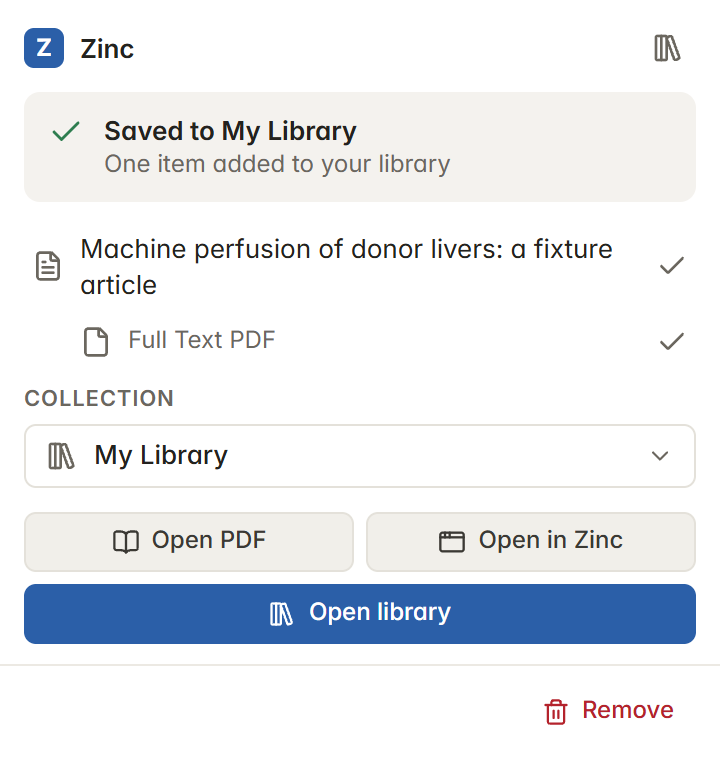
- While saving: the item and its PDF or snapshot, each with a tick when done. Cancel stops the save; anything already saved goes to the Trash.
- Collection: where the item went. Click it to search your collections by name, pick one of your recent collections, or browse the tree. Choosing one moves the item you just saved.
- Open PDF (or Open snapshot) opens the saved file in the app’s reader. Open in Zinc selects the item in the app, starting the app if it is closed. Open library opens your library in a browser tab (below), with the item selected.
- Remove moves the item you just saved to the Trash, where you can restore it. It only touches items created by that save.
A save started from the right-click menu opens the same popup where the browser allows it; otherwise the older progress window appears in the page. Tags and a note can’t be added in the popup yet: add them in the app.
Your library in the browser
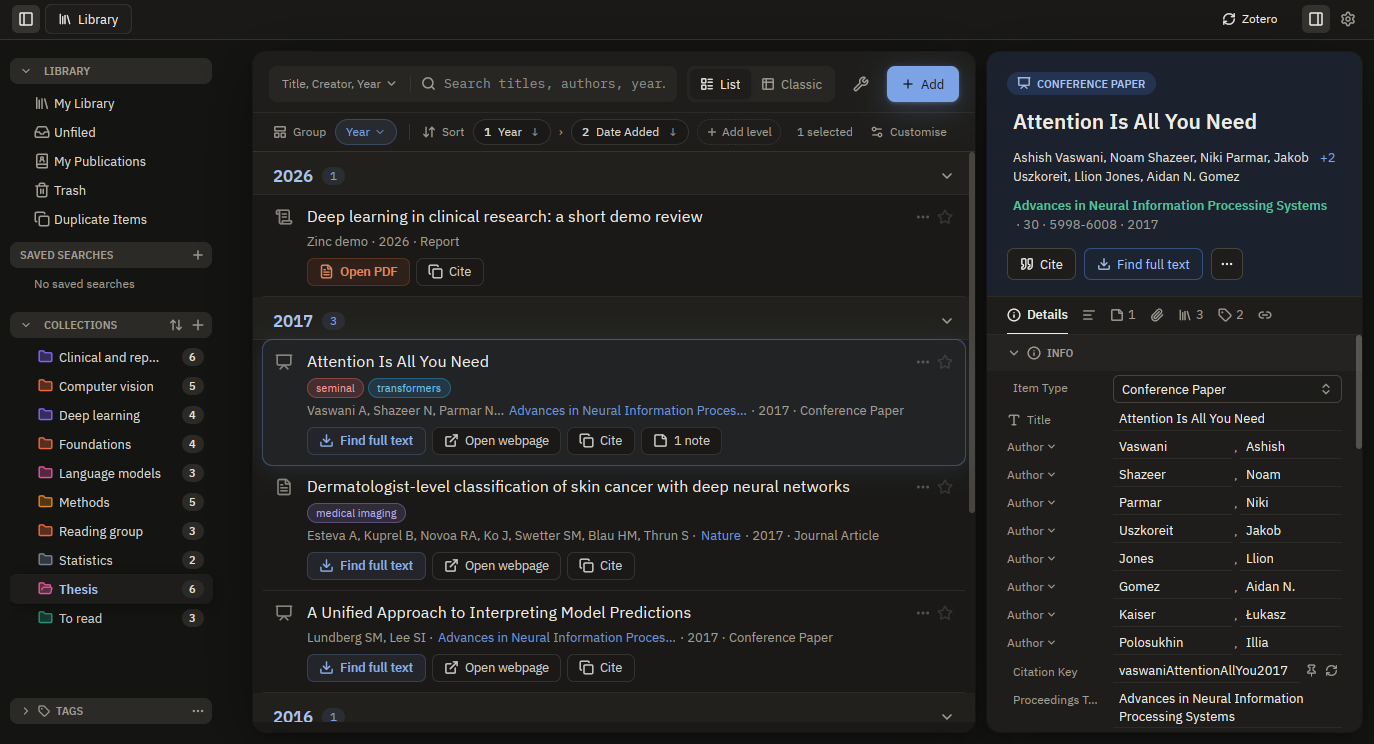
Right-click the Zinc button and choose Open Zinc library, or click Open library in the popup. Your library opens in a browser tab: the same interface as the app, built for the browser, reading and writing the same library file through the helper, so it works with the app closed. Changes made in the app show up within about two seconds.
Browsing, searching and item details work, and so do edits: you can change items, collections, tags and notes in the tab, and they are saved to the app’s library.
The helper limits what the tab can do. It refuses account routes (sync, web sync and integrations), routes that act on the computer (open a URL, reveal a file, open an external program, raw files and Mendeley import), and any request that names a local path or a linked file. Use the app for those.
One library per computer. When the app is installed, the connector always uses the app’s library, so there is no second library to keep in step. If the browser holds a library of its own from before the app was installed, the library tab offers Move your browser library into Zinc. It copies items, collections, notes, annotations, tags and files into the app’s library, skips anything the app already has, and then empties the browser library.
The plain web page without the extension (the browser edition on the download page) is a read-only demo only.
PDFs open in the tab. Double-click a PDF attachment to read it, as in the app: zoom, rotate, find in the document, the outline and thumbnails. Annotations work too. Highlights, underlines, notes and ink you add or change in the tab are saved to your library and synced like those made in the app. A 10 MB PDF takes about one to three seconds to open, because the file passes through the helper. Pages render in the background, so scrolling stays smooth; on long, image-heavy PDFs, pages may take a moment to appear.
Not available in the browser tab:
- Reading view, which needs layout analysis. It shows “Open the PDF in the Zinc app to read it in the reading view”, and the toolbar shows Layout analysis unavailable. Figure and citation previews still work from the page text, but can miss figures without a caption.
- Add Note from Annotations: use the app.
- Printing and page editing (rotate or delete pages in the file).
- EPUBs and web snapshots: they open in a new browser tab, in Zotero’s reader. You can highlight and annotate there. Reading view is not available; use the app for that.
Things to know:
- The collection offered as the target is the one selected in the app when it is running; otherwise it is the one last chosen in the popup; otherwise My Library.
- Word, LibreOffice and Google Docs integration is not available through this extension (the Word add-in has its own route; see Word). Proxy support is not provided.
- The extension and the official Zotero Connector can both be installed, but on sites where you do not want two save buttons, install only one.
- Saved PDFs are stored straight away; their text may be indexed later, when the app next runs its indexer.
The helper’s design, protocol and test setup are described in the repository at connector-host/README.md. For developers, see Architecture.
Updates
If you installed the Zinc Connector from a browser store (Chrome Web Store, Edge Add-ons), the browser updates it by itself and you see no notice.
If you loaded it unpacked from a folder, the browser cannot update it. The extension checks a signed update feed about once a day and when the browser starts. When a newer version exists, the save popup shows “Zinc chrome://extensions (or edge://extensions). A feed that is unsigned or wrongly signed is ignored, and a failed check shows nothing.
After adding
Newly added items are selected so you can check them. Use Duplicate Items to merge any copies, and Find Full Text to attach a PDF if one did not arrive.